Signing in from Copilot
Open DocFlo in Copilot and sign in once; after that, every request runs as you.
- In Microsoft 365 Copilot, open Agents → DocFlo.
- Ask anything — What can DocFlo do for me? is a good first question.
- Copilot shows a Sign in card. Press it.
- The DocFlo sign-in page opens. Sign in the way you normally do, then press Allow.
- Back in Copilot, DocFlo shows your account, your workspace and your projects, and suggests what to do next.
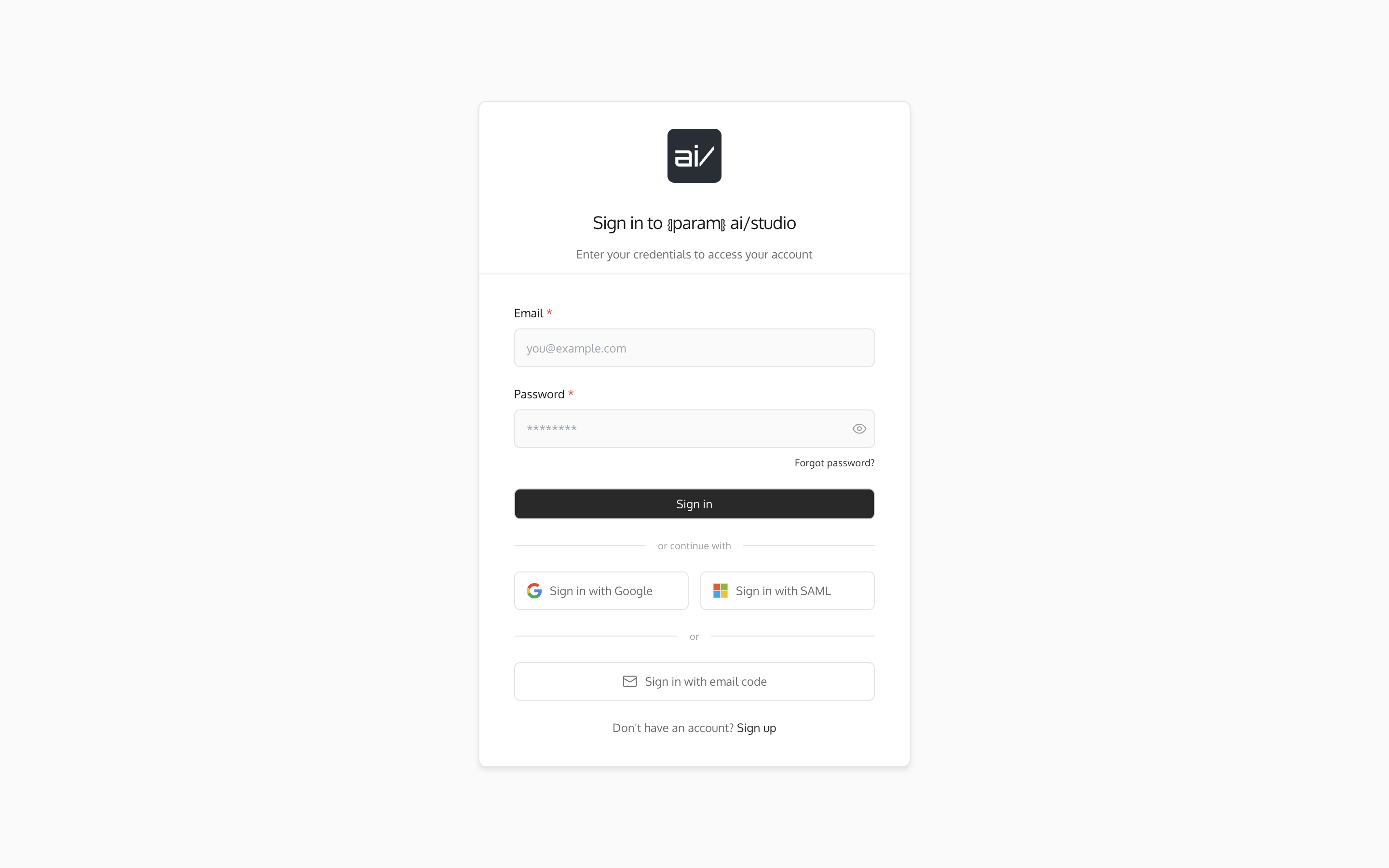
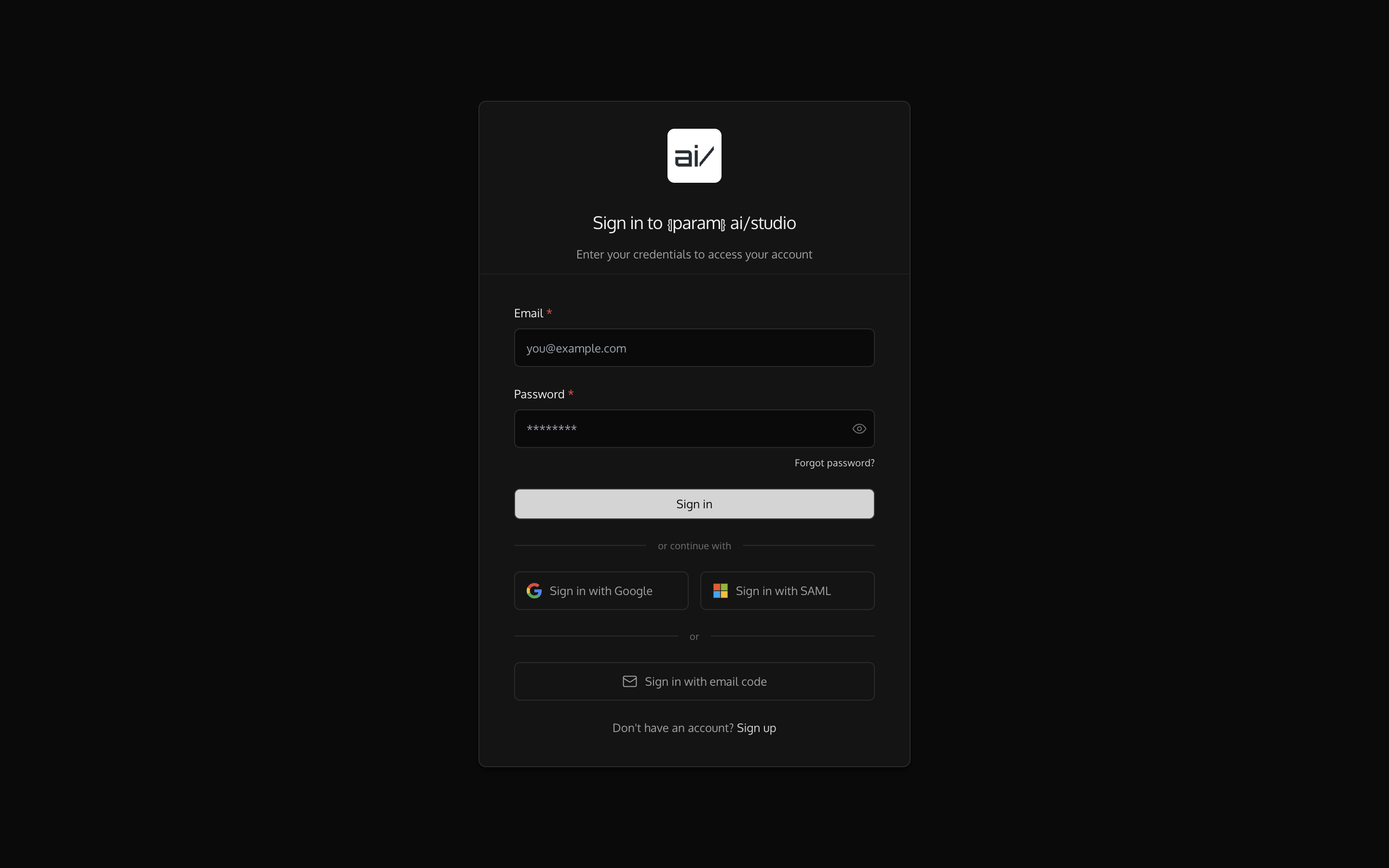
- 1Single sign-on, when your administrator has enabled it.
- 2A one-time code by email, for accounts without a password.
You sign in once. Copilot keeps the connection until you sign out of DocFlo, disconnect the app, or your access is removed.
What DocFlo receives
DocFlo never receives your Microsoft 365 password. Copilot holds a DocFlo sign-in on your behalf, and every request it makes runs as you, with exactly the access you have in the DocFlo web app.
If your organisation uses single sign-on
The sign-in page offers your company’s single sign-on button when your administrator has set it up. Your organisation’s own sign-in rules — including multi-factor authentication — then apply.